

1. Download
Before you start, please contact Datacolor Support to retrieve your software files for download.
Here you can find a walkthrough on setting up your new software along with links for additional support.
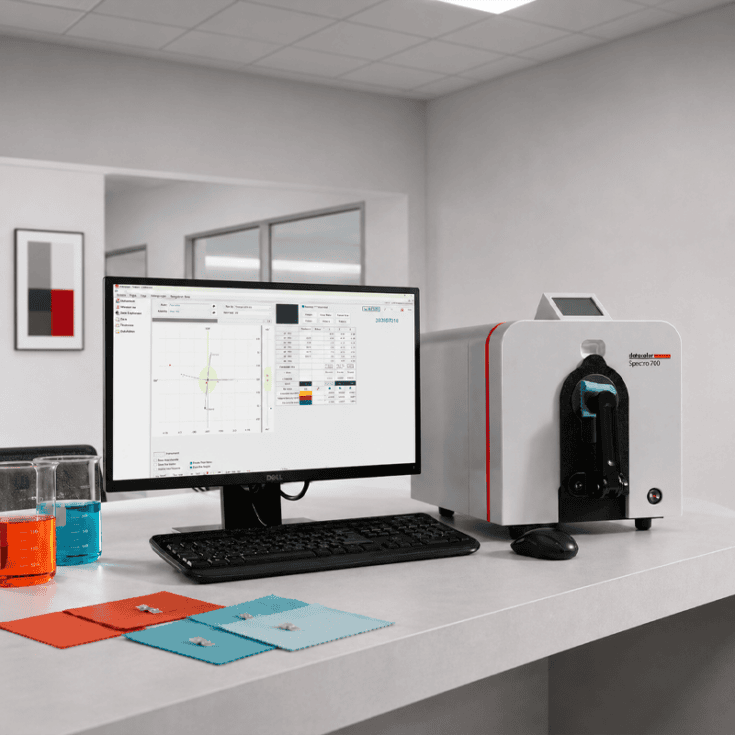
Follow these simple steps below to start using your new software:
Before you start, please contact Datacolor Support to retrieve your software files for download.

Follow these simple steps below to start using your new software product.
Important note before install: Please note this installation process is for standalone systems (a single computer), if you need multisystem installation, please contact your Datacolor representative for different procedures.
Additional factors for successful installation:
To install the ISO image, open File Explorer and right-click on the file. From the pop-up menu, select the Mount command. This will open a virtual drive that is visible in File Explorer, from which you can install the software by double clicking the file “LabProcess.Setup”, which will guide you through the installation process step by step.

You will receive an email containing your software license key details.
The email includes one line of text with four values, separated by semicolons (-).
Example Licence Key:
X7F2-P9QL-3SK5-DR8T
Launch the software and follow the instructions in the License Activation dialog box to create your Machine Fingerprint. Then, connect to the following link to activate your license:
License Activation
Alternatively, please connect with the Datacolor support.
You will receive an email containing your software Activation code.
Example Activation Code:
B0A86A58UvIgBElCOJLu+jQoUMe7g1MUCUv8nsVWO3Z4Fan6CB2FmAi843wBl3QjWiPO7rE1V1ZYZt5reCpfbv236E1RAw47ukIQoPzLZOH9JVQJh44BFVdHhc4gb+uk91WetTMNTmT04kc2JVQtlxXEvF3uMXnpk6xBjecnT+A/XEJ0r9g=8937

Datacolor provides you additional information to get the most out of your software:
| Component | System Requirements |
| Operating System | Windows 10 and 11 (Pro or Enterprise Only) |
| Required Framework | Microsoft .NET Framework 4.7.2 or higher |
| Processor | Dual Core or higher (See Windows operating system requirements) |
| Memory | 8 GB or more |
| Hard drive | 500 GB For ToolsSV: SSD 1 TB Min, 4 TB |
| Display | 1920×1080 – size of text only 100% supported |
| Graphic card | Graphic card supporting OpenGL 2.1 |
| Connections | Serial, USB, Bluetooth or Ethernet (depending on spectrophotometer model) |
| Server OS | Windows Server 2016, 2019, 2022 |
| Additional Requirements | Only for Paint 2.X: SQL Server 2022 Only for Tools 2.X: SQL Server 2012 to 2019 |
| Internet Connection | Internet access recommended for software updates and license activation |
| LAN Connection | For ToolsSV – Network should be 1 GBPS min |
| Notes | Lower system configurations may limit performance, data capacity and operation of some features. Faster processor, more memory and faster hard drives will significantly enhance performance. |
Datacolor provides you additional information to get the most out of your software:

Sybase 12 and Sybase 17 can coexist on the same computer.
Installing Sybase 17, installs the required files to make Sybase 17 run on your computer. The Sybase 17 installation will add an Icon to the computer desktop with the Title Sybase Central 17. If Sybase 12 is already on the computer, there will be an icon with the title Sybase Central 6.1.0 which is the version of Sybase Central that is for Sybase 12.
Sybase 17 can open and use Sybase 12 database files
Sybase 12 cannot open Sybase 17 database files
If your database and software use Sybase 12 and you have Sybase 17 and want to use Sybase Central, please ensure that you select the Sybase Central 6.1.0 icon on the desktop.
Installing Sybase 17 on a system with Sybase 12 will not modify the database. It will not alter the ODBC Connection information either so the database provider will still be Sybase 12.
No Datacolor 24.x or 25.x product will install if Sybase 17 is not installed on the computer, the installation will end, and no changes will have been made to the computer. You will be prompted to install Sybase 17.
Installing Match Pigment, Match Textile, Tools, Tools SV 24.x or higher will require you to enter a new Activation code. If user does not have an activation code, the Datacolor product will not install and nothing will be changed. If a valid activation code is entered, then the new Datacolor 24.x or 25.x product will be installed. The installation will then run a Database update script that will bring the database to the correct schema version for the 24.x or 25.x product. The ODBC Connection information will be updated to use the Sybase 17 provider. At this point, the database will have been updated to the schema version to work with the 24.x or 25.x product, but the database will still be a Sybase 12 format. If you run the 24.1 or 25.1 product you will be prompted each time the software opens that the database was built with a previous version of Sybase and should be upgraded to Sybase 17.
To upgrade from Sybase 12 to Sybase 17 once the 24.1 or 25.1 product is installed launch the installation menu then Select the Upgrade/Rebuild option on the menu. A backup copy of the Sybase database will be made (named old) and a new Empty Sybase 17 database will be generated and then the data will be exported from the Sybase 12 database into reload files and these will be loaded into the new Sybase 17 database. At the end your database, dci_itm.db or Color.db, will be a Sybase 17 format. You will have a dci_itm_old.db or color_old.db that is the Sybase 12 format backup.
If you need additional support, please contact Datacolor Applications Team.
From the recipe explorer view click on the recipe you would like to correct and press the Lab Correction button in the Tool bar or press F6
Follow these step-by-step guide
Right Click on the spectro icon and choose ’input form’.
Please read the detailed preparation guidelines.
Go to the TOOLS menu and click Import or Export.
Read “Import and Export from Match Textile” for more information.
Both Datacolor Match Pigment and Datacolor Match Textile use the Sybase Adaptive Server database management system.
The attached document will explain the different methods that can be used to back up the database.
Follow these step-by-step information
From the main menu press the “recipe” button and use the following options
Follow these step-by-step instructions.
Follow the step by step information
Click on the button ‘sample’ from the main Datacolor Match Textile shell.
Right click on the right-hand side of the sample window and choose sample from the drop-down list. Follow step-by-step information.
Follow the guide for sample preparation best practices using Match Textile.
Select the task ‘New’ from the menu ‘Colorant set’ and select the colorant set type you would like to create. Follow the step-by-step information.

Subscribe to our monthly Datacolor newsletter and stay up to date with the latest news, trends, and industry events.